Wednesday, February 6, 2013

Determine Max Users From Requests Per Second (RPS)

While doing some work for a client the other day, I needed to reverse engineer how many users can their farm handle based on the results from a Visual Studio Load Test. Determining the requests per second that the users will generate is easy once you plug in the required information based off of the end users' usage profiles.

Great!  According to the spreadsheet, their web server needs to be able to handle around 208 requests per second.  But if you run a load test on their farm, and you are given an Avg RPS, how many people can your farm handle based off the give utilization statistics?  This was a bit harder to figure out, but eventually I got there.  After plugging in the actual Avg RPS that the farm could handle while the hardware was still in it's "Green Zone" was 11.  When you put that into the spreadsheet, the number of Total Users that should access their environment should be less than 1,320.


You can download the spreadsheet from here: http://sdrv.ms/Xp7Sq0

Thursday, January 31, 2013

Synchronizing Your Visio Stencils With SkyDrive

A colleague of mine, Ong (@OngYang), had upload the ITPro_PosterStencils.zip file to one of our project sites, and while I was downloading the zip over my MiFi, I started to thinking (insert joke here).  I thought to myself, that it sure would be nice to have those load into every one of my environments so that I do not have to keep reloading the stencils every time I open up Visio on every machine I use.  I mean, I use SkyDrive to synchronize up everything else, why not my Visio stencils as well.
If you do not have a SkyDrive account set up, you will need some other form of synchronization tool to synchronize your files to all of your computers (laptops, desktops, and yes, even tablets).  From here on out, I will assume that you are using SkyDrive.

1)  Go to your My Documents folder, find your My Stencils folder and move the My Stencils folder to your SkyDrive folder.  You might even already have a linked library folder called My Documents within your SkyDrive already (hopefully).

2)  Download the ITPro_PosterStencils.zip file from here and unzip it into a folder within your My Stencils folder.  You might even think about cleaning up the names of the stencils to make things more organized.

3)  Open up Visio.  Depending on the version of Visio that you are using, things will be a bit different for the next step.  This process is for using Visio 2013.
4)  Click on the General search link to get to your settings menu.

5)  From the general settings tab, find the Options tab.

6)  Within the Visio Options window, click on the Advanced tab.
7)  Scroll all the way to the bottom, and in the General settings section, click the File Locations...  button.

8)  Under the My Shapes heading, you can click the browse button and point to the new My Shapes folder within your SkyDrive.

9)  Click Ok and Ok and create a new drawing.
10)  Under more shapes, you should now be able expand out to see your new stencils.
By following these steps you should now be able to go to all of your Visio clients and point them at your synchronized My Shapes folder which will give you all of your Shapes when loaded.

Saturday, November 3, 2012

Using PowerShell to Export Your .WSP Packages

During your upgrade from SharePoint 2010 to SharePoint Server 2013, we will need to make sure that we have all of the appropriate versions of our deployed WSP files.  If you have ever been a guest (consultant) on another farm, and your client has not been able to maintain a valid history of deployments, you could really run into a big upgrade problem.  Luckily for us, Shane Young, with help from Todd Klindt, wrote up a nice blog post on how to export and import your farm solutions using PowerShell called Using PowerShell to export all solutions from your SharePoint 2010 farm and other fun
I am only really worried about the extract portion of the blog, and have modified the script a bit to fit how I run my scripts.
#Get Backup Path
$bkdir = read-host("Enter Folder Location") # Get Backup Path!

# Set Backup Path if you want to hard code your path
#$bkdir = "\\serverName\Shared\Temp" (optional "C:\Temp")

# Verify folder exists
if ((test-path $bkdir) -eq $false ) # Verify folder else create it...
  {
     [IO.Directory]::CreateDirectory($bkdir) 
  }

# Add Snapin
Add-PSSnapin Microsoft.SharePoint.PowerShell -EA 0 

(Get-SPFarm).Solutions | ForEach-Object{$var = $bkdir + "\" + $_.Name; $_.SolutionFile.SaveAs($var)}

Thanks Shane for making life less stressful!

Saturday, October 20, 2012

Getting Your SharePoint Farm Information

As we prepare our upgrade strategy for SharePoint Server 2013, one of the major requirements is documentation of our existing SharePoint 2010 environment.  This is also a good script to run when first getting your hands on an unknown farm.  This should save you a bunch of documentation time.
<Lecture>
In theory, you should be reviewing the output documentation of your environment on a weekly basis.  You could even go as far as importing the results into SQL, and tracking your growth and changes of your SharePoint Farm with SSRS.
</Lecture>
This script will create a folder, go through your farm, and create the appropriate .csv file as long as you have the appropriate permissions to run the script and you have permissions to access the data.

There are several blog posts on how to take all the .csv files and merge them into one .xlsx file.  Here are a couple that I found useful.  You will notice that they call the ComObject Excel.Application, so if you do not have Excel installed or the appropriate Office System Driver Connectivity Components installed, you will get an error.
This post by Jeff Hicks was very informational about how to get everything working:
This page actually has a .ps1 for you to download, but in the Q&A section, imfrancisd has a script that works very nicely as well.

Update (01/10/2012)
Added -Limit All
Update (10/30/2014)
Added a check to see if Backup location ends with "\"
Added URL to Sandbox Solution location for output
Added site structure output for entire farm
Added Disposal of objects
Update (10/21/2015)
Moved Script to Gist
Fixed error in Get Features section thanks to Matthew Bramer (@ionline247)
Cleaned up Get Site Structure section to get ALL webs within each Site Collection by Web Application.


Monday, October 1, 2012

SPSRED: Upgrading your SharePoint and SQL Environments

I was fortunate enough to have scheduled the end of a client engagement to coincide with the start of SharePoint Saturday Redmond.  When I had submitted the topic, I was kind of hoping to not have it selected, as there was a lot of work that would need to be done.  That being said, here is my presentation:

Here is the farm layout:

 Here is the template that I used when creating SQL Cluster and HA Group:

Here is the output file from the Test-SPContentDatabase:

All files are located here:
https://skydrive.live.com/redir?resid=8E55AA8C038225F8!4265

Saturday, August 11, 2012

Windows 8 and The Unsupported Cisco VPN Client

When you spend most of your time doing remote sessions into client environments using the Cisco VPN Client, I found it a bit troubling to find out that Cisco announced their VPN Client End of Life.  However, since I had the installation on a supported Windows 7 box, I was not too worried that Windows 8 would not be supported.  Fast forward to August 8, 2012: my laptop died, all I had was a Windows 8 tablet to use as my defunct work computer, and I was no longer able to get to my clients...
To resolve this issue:
1) Open up the Registry Editor:
\HKLM\SYSTEM\CurrentControlSet\Services\vpnva\DisplayName

2) Edit the DisplayName, and clean out all of the junk (including the semi-colon) before the adapter name, leaving just the display name.  For example:
"@oem10.inf,%vpnva_Desc%;Cisco AnyConnect VPN Virtual Miniport Adapter for Windows x64"
becomes:
"Cisco AnyConnect VPN Virtual Miniport Adapter for Windows x64"

Tuesday, May 29, 2012

Verify Your SQL Connection / Get Connection String

I have been very fortunate to have some fantastic mentors.  One of them is a gentleman by the name of Ken Ammann, who taught me this trick when you need to verify your SQL connection or get your connection string.
1) From your desktop, right-click and create a new text document.

2) Change the file extension from .txt to .udl


becomes:

3) Click Yes to verify the change of extension type.

4) Open the UDL file and set properties.

5) Test the connection.

6) Click OK.
7) Change file extension back to .txt
8) Take a look at your connection string.
It is a nice easy way to verify your SQL connections when you need to verify that you still have a SQL connection.  The real reason that I wrote this post is that I was spending too much time trying to recall the UDL extension name.

Sunday, March 18, 2012

Upgrade to Server 8 (beta) With SharePoint 2010

With the unveiling of the new Server 8 beta OS, and SQL 2012, I decided to see how I can upgrade my development farm.
Host:
Server 2008R2, 6 cores, 16 GB RAM.
Farm: All running Server 2008R2
OU-01: AD/DNS
SP-01: SharePoint 2010 SP1, August CU
SQL-01: SQL2008R2

I started by upgrading my Host OS via USB.  This was not as much fun as I was hoping, but in the process, I did find a great utility for formatting USB drives made by HP (http://download.cnet.com/HP-USB-Disk-Storage-Format-Tool/3000-2094_4-10974082.html).  So you will need to download the ISO to USB tool from Microsoft called the Windows 7 USB/DVD, you can download the tool here...  Run the program and follow the directions to create the boot-able USB.

So with the Host OS upgraded and my Snapshots taken, it was time to tackle my SP-01 box.  I did not detach from the farm, or do anything special, I just attached the ISO and ran E:\Setup.exe from the DVD.


With the installation completed, we are going to be looking at my 3 web applications,  a Classic Authentication Application., a Claims based Authentication, and a Mysites Web Application, which is also a Classic Authentication Application type.
Now that we have the OS installed, and without even logging into the server, let's see what our sites look like.
Here is our Classic Authentication Site...
Here is our Claims Site (not a good sign)...
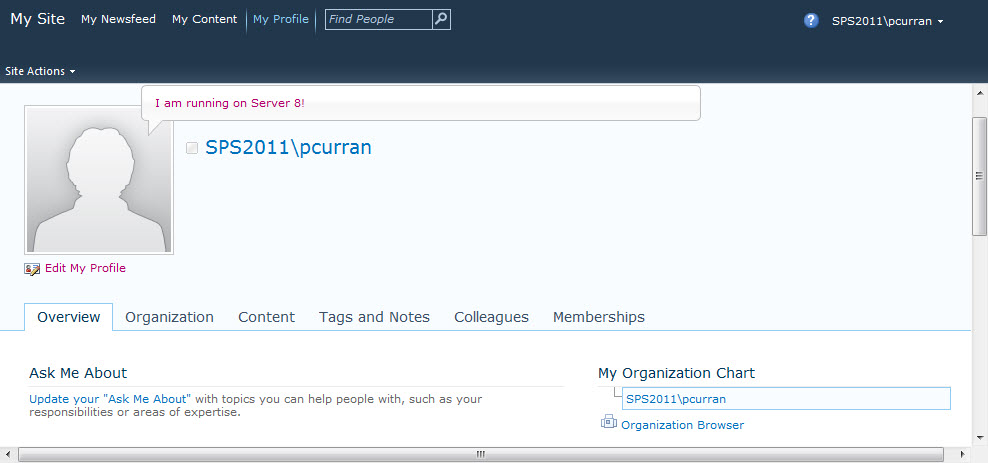
Here is our My Site... 
This is a good sign!
This... not so much...
At this point I figured it is a Claims vs Classic authentication issue and a User Profile Issue.  Let's look at CA and make sure that everything is running.
Logging into my Windows Server 8 box, I notice a lot of errors right off the bat...
So open up the event viewer to see what issues I am truly having...

Since all of our errors seem to stem from the STS having issues, lets take a look at our services and make sure that everything is up and running.
Service on Server
Web Applications

At this point, I decided that the STS will need to be provisioned again.  But how to run PowerShell in Server 8?
Server 8 PowerShell (.Net 4.0) will not run the PowerShell v2.0 cmdlets.  You will need to install a compiled PowerShell application like PowerGUI to run PowerShell v2.0 (.Net 3.5).  Read step #6 in Craig Lussier blog post Install SharePoint 2010 on Windows Server 8 Beta.  You will want to download PowerGUI.3.1.0.2058.msi to run your PowerShell commands.  After downloading and installing, it will open a session of PowerGUI.  Do not upgrade, and close the program.  You will want to run PowerGUI as Administrator.
run the script...
Add-PSSnapin Microsoft.SharePoint.Powershell -EA 0
$sts = Get-SPServiceApplication | ?{$_ -match "Security"}
Write-Host($sts)
Write-Host($sts.Status)
$sts.provision()
lets verify sites...
Here is our Classic Authentication Site (still working)...
Here is our Claims Authentication Site... 
Here is our My Site...